Bank Statement Converter: PDF to Excel or CSV Your Accounting Software Will Accept
Every bank statement converter gives you a spreadsheet. Most give you one QuickBooks or Xero will bounce. GetBankCSV shapes the export to the column layout, date style and row limit your accounting software actually documents — and adds up every row against the closing balance printed on your statement — so the import works the first time.
PDF → CSV · XLSX · QBO · OFX · QIF
No credit card1 free statement a monthDeleted after conversion
What is a bank statement converter?
A bank statement converter turns PDF bank statements into structured spreadsheet data you can sort, total and import. You upload the statement, the bank statement converter reads each transaction line — date, description, debit, credit and running balance — and returns the result as Excel or CSV.
Two things separate a usable conversion from a wasted one. The first is the source file: a PDF downloaded straight from online banking carries a real text layer, while a scan or a phone photo is only an image and must be read by OCR, which is measurably less reliable. The second is the output format, and it is the step most people are not warned about. Accounting software does not accept just any spreadsheet. QuickBooks Online takes a CSV of exactly three columns (Date, Description, Amount) or four (Date, Description, Credit, Debit), and caps each upload at 350 KB and 1,000 lines. Xero requires Date and Amount at minimum, income as positive and expenses as negative, and refuses files over 100,000 rows. A bank statement converter that ignores those rules hands back a file that opens fine and imports badly.
Bank statement converter
A free account converts 1 statement through this bank statement converter every month.
Sign in to run it
Your file stays right where it is — as soon as you are in, it starts. No password to invent and none for us to lose.
- One statement a month, free
- Up to 10 pages per statement
- All five formats — CSV, XLSX, QIF, OFX, QBO
- Balance check and unread-content notice
We ask Google for your email address and nothing else. Free. No card. Nothing renews. Your file is deleted after conversion.
This statement is password-protected.
Your file is still here — you do not need to pick it again. Banks usually use your date of birth or the last four digits of the account. We use it only to open this file while we convert it, and we never store it.
Drop a statement here
A PDF from your bank, or a scan or photograph of a paper one. The bank statement converter asks nothing of you until it is read and added up.
PDF only · up to 25 MB and 40 pages each · up to 12 at once
Unlock the download
Everything the bank statement converter has shown you so far is free and stays free. Paying unlocks the full file. Nothing else is held back.
Single Statement
1 statements in total
- All five formats
- Balance check on every file
- Nothing renews
Five Statements
5 statements in total
- All five formats
- Balance check on every file
- Nothing renews
Starter
100 pages a month
- All five formats
- Balance check on every file
- Cancel whenever you like
Pro
200 pages a month
- All five formats
- Balance check on every file
- Cancel whenever you like
New project
A project keeps its name and its list of statements. The statements themselves are still deleted 24 hours after they were converted — a project does not keep them longer.
Export
Why your converted file gets rejected — and why no bank statement converter warns you
Conversion is not the hard part any more for a modern bank statement converter. Reading a table out of a PDF is a solved problem, and a dozen tools do it competently. The part that still costs an afternoon is what happens next: you open the file, it looks correct, you upload it to your accounting software, and it fails.
It fails for reasons that have nothing to do with extraction quality. Intuit's own upload documentation is specific: the file must be in English, must be 350 KB or smaller, may contain up to 1,000 lines per upload, and must have either three columns (Date, Description, Amount) or four (Date, Description, Credit, Debit) — no other column count is accepted. Intuit further documents that zeroes must be removed and the cells left blank, that the Credit and Debit headers must read exactly that without the word "Amount" appended, and that Mac users have to save the file specifically as a Windows CSV. (Intuit — Manually upload transactions into QuickBooks Online)
Intuit's error guide adds one more, and it is the one that catches people: special characters in a bank description can block the import outright. Bank descriptions are full of asterisks, hashes and slashes. (Intuit — Common errors for importing bank transactions using CSV)
Xero has its own, different set. Only Date and Amount are mandatory. Income and expense amounts
must sit in the same column, income positive and expenses negative — written either as
-30.00 or as (30.00). Commas must not be used to mark decimal places.
A file with more than 100,000 rows will not import at all. And if you include a Payee column,
the name has to match an existing Xero contact exactly, or Xero creates a duplicate contact
instead of matching it.
(Xero Central — Import a bank statement in CSV format)
None of that is exotic. It is published, stable, and knowable. It is simply work that every other bank statement converter leaves on your desk.
The exact CSV format QuickBooks Online accepts
Column layout: three columns or four, nothing else
QuickBooks Online reads exactly two shapes. Three columns — Date, Description, Amount — with money out written as a negative number. Or four columns — Date, Description, Credit, Debit — with money in and money out separated. A file with five columns, or with the columns in a different order, fails at the mapping step rather than at upload, which is why the error is easy to misread as a problem with your data.
Size and row limits: 350 KB, 1,000 lines
Intuit caps each upload at 350 KB and 1,000 transaction lines, and requires the file to be in English. A full year of a busy current account will exceed both. The documented fix is to shorten the date range and upload in batches — which means a bank statement converter that hands you one giant file for the year has, in practice, handed you a manual splitting job.
The three formatting rules that silently break the file
Remove zeroes and leave those cells blank. Strip the word "Amount" from the Credit and Debit column headers. Keep every date in a single format throughout the file. Each of these is documented by Intuit, and each produces an import failure whose message does not name the real cause.
Date, Description, Amount or
Date, Description, Credit, Debit, zeroes left blank, the characters Intuit blocks
replaced with spaces, and anything past 1,000 rows or 350 KB split into numbered files
you upload one at a time.
Why you pick the account yourself ·
the full walk-through.The exact CSV format Xero accepts
Two mandatory fields, five useful optional ones
Xero needs only Date and Amount to create bank statement lines. Everything else is optional — but the optional fields are what make reconciliation fast rather than tedious. Payee drives Xero's contact matching and bank rules. Description shows on the reconciliation screen. Reference carries the bank's own reference. Xero also allows two extra columns for a bank's analysis code and transaction type.
Signs, decimals and the 100,000-row ceiling
Income and expenses share one Amount column. Income is positive; expenses are negative,
written as -30.00 or (30.00). Commas are not used for decimal
places. And Xero will not import a CSV with more than 100,000 rows — if you hit it, Xero's own
guidance is to delete empty rows or switch to OFX or QIF instead.
The Payee trap
If the Payee name in your file does not match an existing Xero contact character for character, Xero creates a second contact rather than matching the first. Do this across a year of statements and you inherit a contact list full of near-duplicates that someone has to merge by hand later.
Date, Amount, Description: the two fields Xero requires plus the one that
makes reconciliation readable, amounts already signed the way Xero asks (money in positive,
money out negative, one column, merged for you when your bank prints two).
We deliberately leave Payee out — all we have is what the bank printed, and feeding
that to Xero's contact matching is exactly how you end up with a contact list full of
near-duplicates.
What every column means ·
the full walk-through.How this bank statement converter gets your file to import on the first try
Every bank statement converter reads the PDF. The difference here is not in the reading — it is in what happens after it, and in what you get to check before you pay.
Upload the statement
Drag in a PDF straight from online banking, or a scan of a paper statement — one, or a dozen at a time. This bank statement converter reads dates, descriptions, debits, credits and running balance line by line. No card, nothing to install, and a free account covers 1 statement every month, up to 10 pages per statement. If the PDF is password-protected we ask you for the password, use it to open that one file, and never store it.
Read the verdict — this part is free
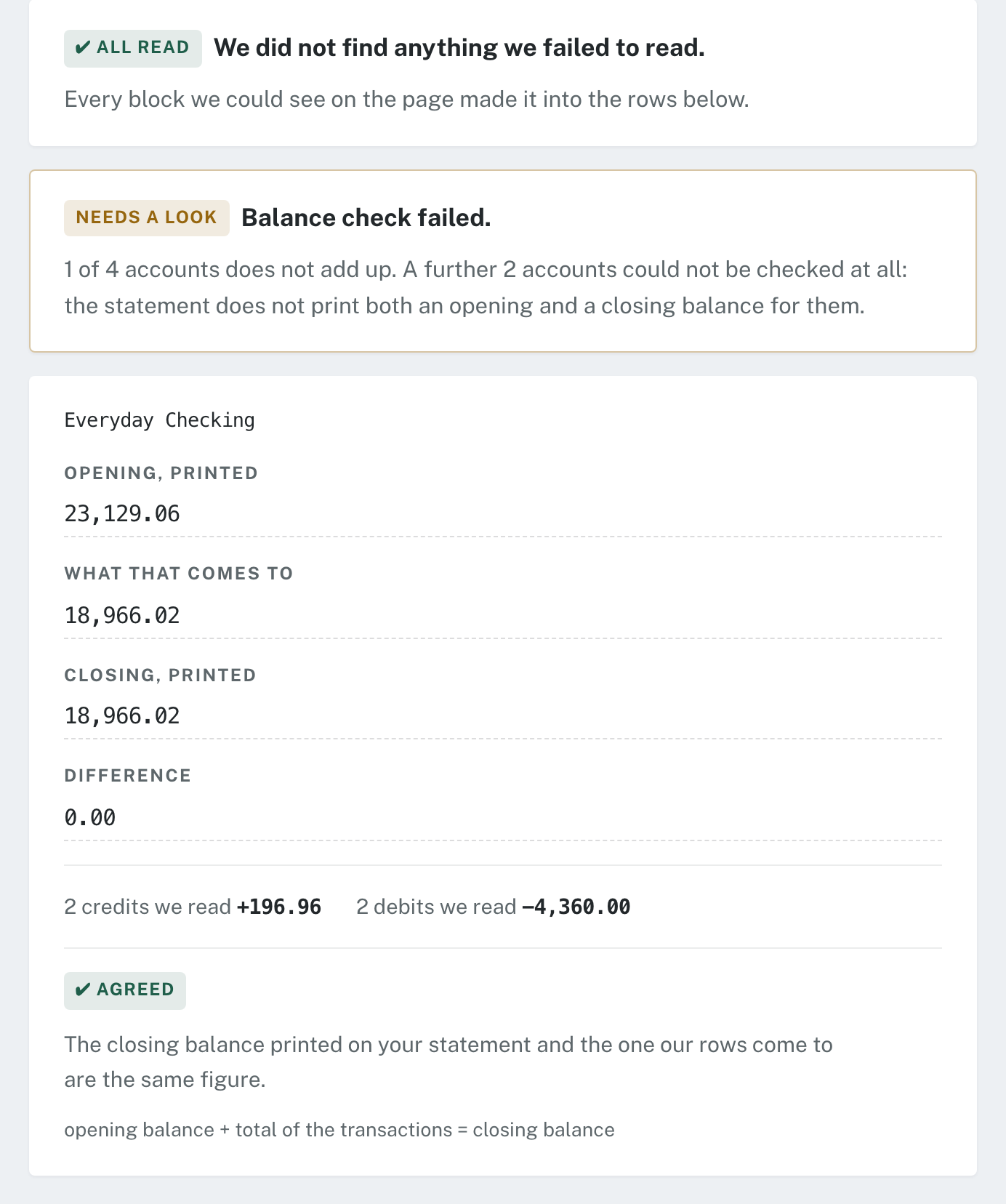
Before any payment you see the first ten rows, the opening and closing balances printed on your statement with our arithmetic between them, and a plain list of anything in the document we could not read. If the answer is “this conversion is no good”, you find that out here, for nothing.
Pick where it is going, not just what format you want
This bank statement converter does not ask you for a file extension here — you pick the software instead. Say QuickBooks and you get either the QBO, which skips the CSV rulebook above entirely, or a CSV already cut to Intuit's three or four columns, its header wording, its blank-for-zero rule and its 1,000-row limit. Say Xero and you get the columns Xero asks for, signed its way. Say nothing and you get our own thirteen columns, which is the right answer if the file is going to a human. One conversion unlocks all of them, and taking one does not use up another.
One honest catch, since it is this bank statement converter's own rule we are bending: QuickBooks rejects a CSV containing any line that is not a transaction, so when you pick it as the destination we cannot write our usual notes inside the file. If that conversion has open questions, the file comes to you named
…-CHECK-BEFORE-IMPORT.csv, the notes are on this page, and the plain thirteen-column CSV still carries them in full. We move that warning; we do not drop it.
See it before you pay: what this bank statement converter shows for free
You do not have to buy anything to find out whether the conversion worked. Every upload to the bank statement converter shows you three things for free:
- The first 10 rows of the extracted transactions, so you can eyeball dates, descriptions and signs.
- The balance check: opening balance plus the transactions we read, compared against the closing balance printed on your statement.
- The unread-content notice, if anything in the file did not make it into the table.
Paying unlocks the full file in the format you pick. Nothing else is held back.
The difference: what other bank statement converters do not check
“There is something in this file I did not read.”
This is the part other bank statement converters do not do.
A bank statement converter’s balance check can only catch errors in numbers it actually read. If a whole block of the statement — an entire account, a page rendered as an image with no text behind it — never enters the output at all, there is nothing left to disagree with, and the totals still add up perfectly. You would get a clean-looking spreadsheet that is missing two commercial loans, and nothing on the page would tell you.
So the bank statement converter checks the document a second way, independently of what the extractor produced: we scan the page for ink that has no text behind it, reconcile every amount visible in the text layer against the rows in your table, and read image-only blocks locally. Anything that cannot be accounted for is reported to you by page — and the notice travels inside the downloaded file, not just on this website, because the person who ends up reading your spreadsheet is often your accountant, not you.
Which format should I pick?
None of these five is held back for a higher plan. One conversion gives you all of them, and downloading the CSV does not use up the Excel. Pick by what your software will accept.
| Format | Use it when |
|---|---|
| CSV | You want something every tool can open, Xero included. One row per transaction. Column definitions. |
| XLSX | The statement has several accounts. Each account gets its own sheet, plus a balance-check sheet. How the workbook is laid out. |
| QIF | Your accounting software is older, or the stricter formats get rejected. Fewest required fields. What QIF cannot carry. |
| OFX | The open bank-exchange standard. Quicken and most desktop accounting tools read it. Which version we write. |
| QBO | QuickBooks. It is OFX plus the extra tags Intuit requires. Why you pick the account yourself. |
Digital PDF or scanned image? Your bank statement converter is doing two different jobs
Most bank statement converters quote a single accuracy figure. That figure is close to meaningless unless you know which kind of file it applies to, because the two are different problems.
A digital PDF — the file you download from online banking — contains a real text layer. The transaction text is already machine-readable; the work is reconstructing the table structure around it. This is the reliable case.
A scanned or photographed statement is an image. There is no text to read, so the
characters have to be recognised before any table logic can run. Resolution, skew, shadows,
staple marks and background shading all degrade the result, and the failure mode is quiet: a
1 read as a 7 produces a number that looks perfectly plausible in a
spreadsheet.
GetBankCSV tells you which path your file took, and flags the lines it is least confident about, so you check ten rows instead of re-reading four hundred. We publish no blended accuracy percentage at all — not one number for both, and not two numbers either. A figure measured on our test files tells you nothing about your file, and averaging the two cases would hide exactly the one where you need to be careful. What you get instead is the arithmetic on your own statement, free, before you pay.
Practical consequence: if your bank offers a PDF download, use it rather than scanning a posted statement. Fixing the input before it reaches the bank statement converter is the single largest thing you control.
What to check when your bank statement converter output doesn’t match
Every bank statement converter’s marketing stops at “download”. Here is the part that belongs on the page — a four-line check that catches almost every conversion error in under a minute, in the order that finds problems fastest. We run the first one for you on every upload, free, before you pay anything.
Make the balances close
Opening balance, plus the sum of credits, minus the sum of debits, should equal the closing balance printed on the statement. If it does not, a line was dropped, duplicated, or read with the wrong sign. This single check catches more errors than reading the rows — which is why it is the one we run on every file, per account rather than across the whole document.
Count the rows
Compare the row count in your spreadsheet to the transaction count on the statement, where the bank prints one. A mismatch usually means a row broke across a page boundary, or a summary line was captured as a transaction.
Check the first and last date
The earliest and latest dates in the file should match the statement period exactly. If the first date is later than the period start, page one was skipped — which happens when the first page carries a letterhead the parser treated as a header block.
Scan the amount column for text
Sort by the amount column. Anything non-numeric floats to one end. This is where multi-line descriptions leak: a long payee name wraps to a second line, and the wrapped fragment lands in the wrong field. It is the most common structural failure in bank statement extraction and the easiest one to spot.
The three cases that need a human. Multi-currency statements — a foreign-currency line usually carries both the original amount and the converted amount, and only one of them belongs in your ledger. Page-break rows — a transaction split across two pages can be read once, twice, or half. Summary and subtotal lines — “Total debits this period” is not a transaction; if it is in your file, your balance check in Check 1 will fail by exactly that amount, which is a useful diagnostic.
People who do the books — their own, or someone else’s
- Month-end reconciliation
- Last month’s statement has to go into the accounting software and agree with what is already in there. You need the rows to be right, and you need to know if any are missing.
- Tax season, a year at a time
- Twelve statements in one sitting. Drop them all into the bank statement converter at once, watch the queue tell you which ones need a second look, and download them as one merged file with a column saying which PDF every row came from.
- One PDF holding several accounts
- A current account, a loan and a credit card in the same document. Each comes out as its own table with its own balance check — and a loan is checked the way a loan works, not the way a current account does.
Bank statement converter questions: will it read my statement?
How accurate is it?
Which banks do you support?
Does it work with scanned statements and image-only PDFs?
Digital PDF or a scan — does it matter which I upload?
Batches and multiple accounts
Can I convert several statements at once?
My statement covers several accounts. Do they stay separate?
account column; in Excel each account gets its own sheet, and the balance check is run per account rather than across the whole file. A statement holding a checking account, a savings account and a loan produces three separate balance verdicts.Your file, and getting it out
What if my PDF is password-protected?
What happens to my file afterwards?
From bank statement converter to QuickBooks, Xero and everything else
How do I import the result into QuickBooks or Xero?
Will a CSV import into QuickBooks Online without editing?
Will it import into Xero?
If the QuickBooks file has no warning notes in it, where did they go?
How should I choose a bank statement converter?
Bank statement converter pricing: start free, pay for the statement, not the month
The free trial is the free tier, and it does not expire: 1 statement every month, up to 10 pages per statement, for as long as you want — with the full balance check and the unread-content notice, not a crippled preview. A free account is all it takes, and this bank statement converter never locks a file you have already converted behind a paywall. Beyond the free statement, a single statement is $5 and nothing renews unless you pick a monthly plan.
Free
1 statement a month
- All five formats
- Balance check on every file
- No card
Single Statement
1 statement in total
- All five formats
- Balance check on every file
- Nothing renews
Five Statements
5 statements in total
- All five formats
- Balance check on every file
- Nothing renews
Starter
100 pages a month
- All five formats
- Balance check on every file
- Cancel whenever you like
Pro
200 pages a month
- All five formats
- Balance check on every file
- Cancel whenever you like
Prices in USD. No subscription is required to use this tool.
Try this bank statement converter on a real statement
The only test that matters is whether the file goes in. Convert one statement free, read the balance check, and decide after that — not before.
No card. A free account converts 1 statement a month, up to 10 pages per statement. Your file is deleted when the conversion finishes.
More on bank statement converter workflows and accounting imports
- Importing bank statements into QuickBooks Online: the documented CSV limits, and why QBO skips them
- The Xero CSV bank statement import format, and the five things that stop it
- Which banks GetBankCSV has been tested against
- Reading the converted file: what each CSV column actually means
- Multi-account statements in Excel: one sheet per account, one balance check each
- How GetBankCSV handles your files
- Pricing and limits